How to Use Microsoft PowerToys – Complete Guide


Asif Mohammad Sovon
Asif Mohammad Sovon, IT Assistant at Bangladesh Air Force and Fileion tech writer, simplifies tech t...
You use Windows every day. But are you really using it at full speed?
Most users stick to default settings. They drag windows around manually. They search for files the slow way. They never realize Windows can do much more right out of the box.
Microsoft PowerToys fixes that. It adds a set of free, official tools directly on top of Windows. No third-party apps. No sketchy downloads. Just clean, powerful utilities built by Microsoft itself.
In this guide, you will learn what PowerToys is, what it can do, and exactly how to set it up and use its most useful features step by step.
Let's dive into the basics before moving to the hands-on steps.
What is Microsoft PowerToys?
Microsoft PowerToys is a free, open-source utility suite for Windows 10 and Windows 11. It was originally built in the Windows 95 era and was relaunched by Microsoft in 2019 as a modern productivity toolkit.
It is designed for power users, developers, writers, designers, and anyone who wants more control over their Windows experience.
With PowerToys, you can snap windows into custom layouts, rename hundreds of files in seconds, remap keyboard shortcuts, preview files without opening them, and much more. It works quietly in the background and activates only when you need it. Key Features include FancyZones, PowerToys Run, File Locksmith, Image Resizer, & Keyboard Manager.
Step-by-Step Guide: How to Use Microsoft PowerToys
-
Open your browser and go to the Microsoft PowerToys page on Fileion. This source is legitimate and safe.
-
Download the latest stable installer. Always pick the version that matches your system architecture.
-
Run the installer. Accept the license agreement and click Install. The process takes under a minute on most systems.
-
Once installed, PowerToys opens automatically. A small icon appears in your system tray near the clock. This is where you access settings anytime.
-
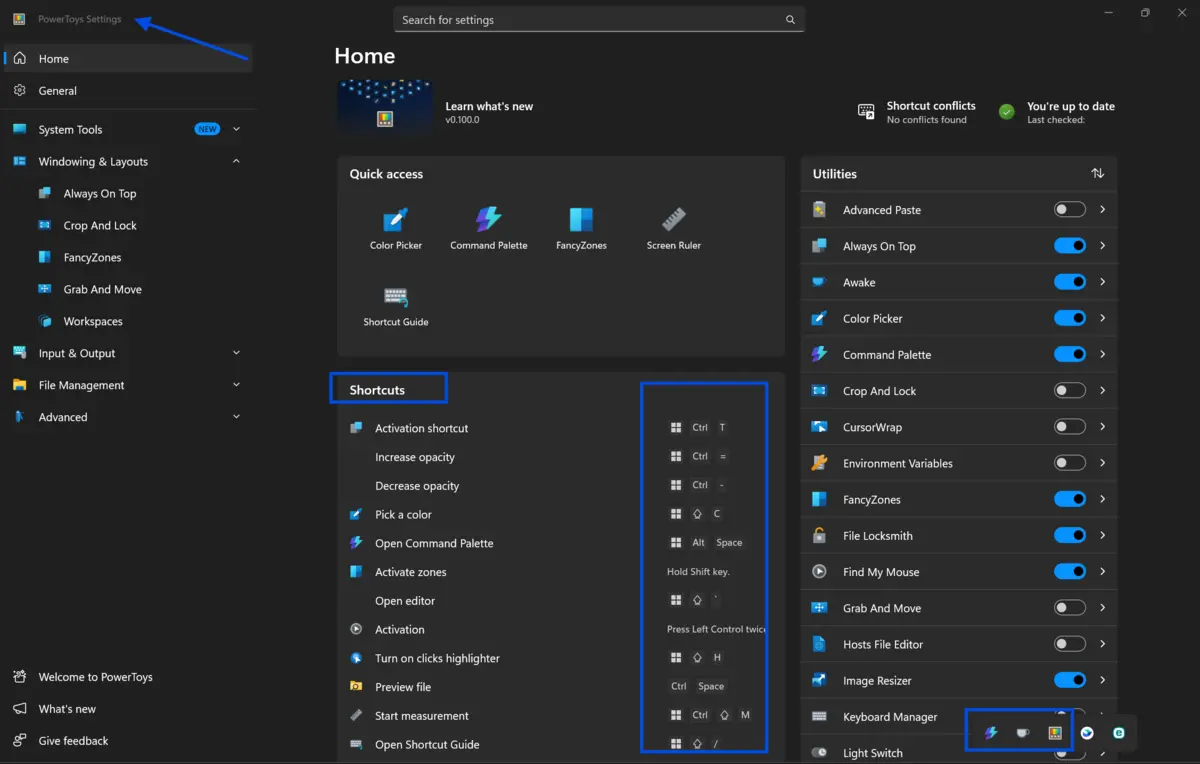
Click the tray icon to open the PowerToys Settings dashboard. You will see a list of all utilities on the left panel. Each one has a toggle to enable or disable it independently.
-
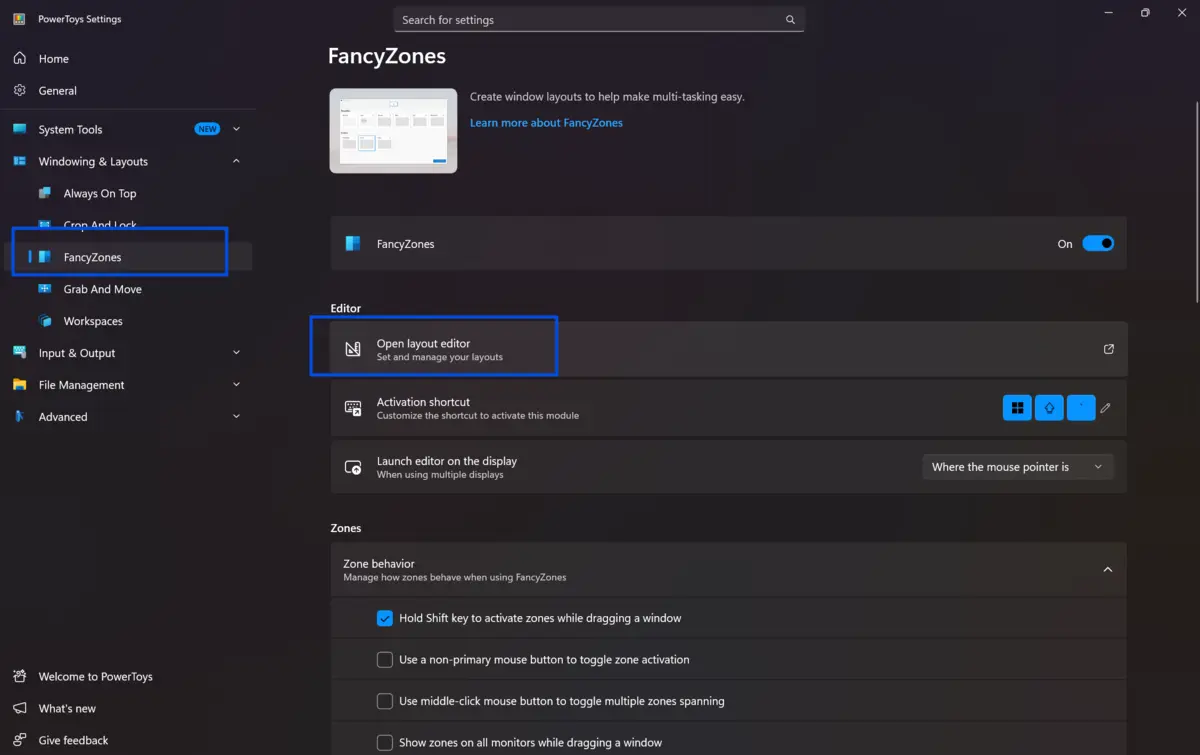
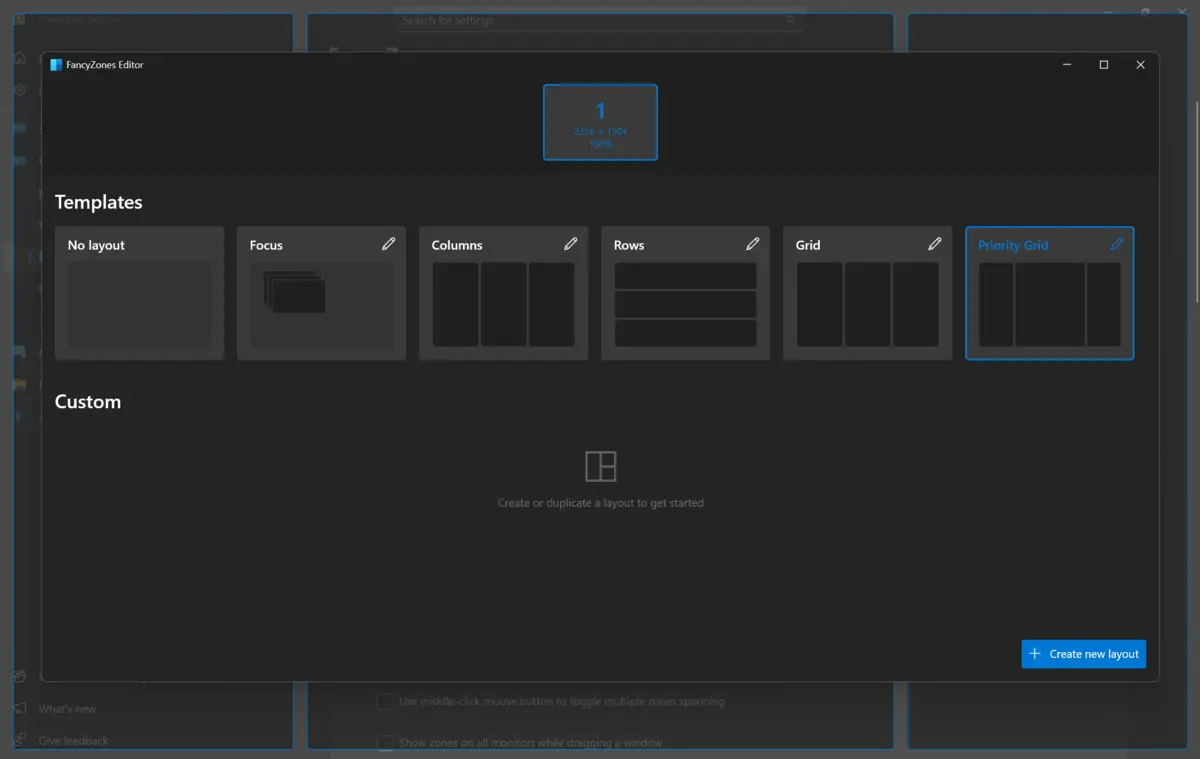
Start with FancyZones. Enable it, then click "Launch layout editor." Draw your preferred window zones by dragging dividers on the screen. Save your layout when done.
-
To use FancyZones, hold Shift while dragging any open window. The zone grid will appear. Drop the window into any zone, and it snaps into place perfectly.
-
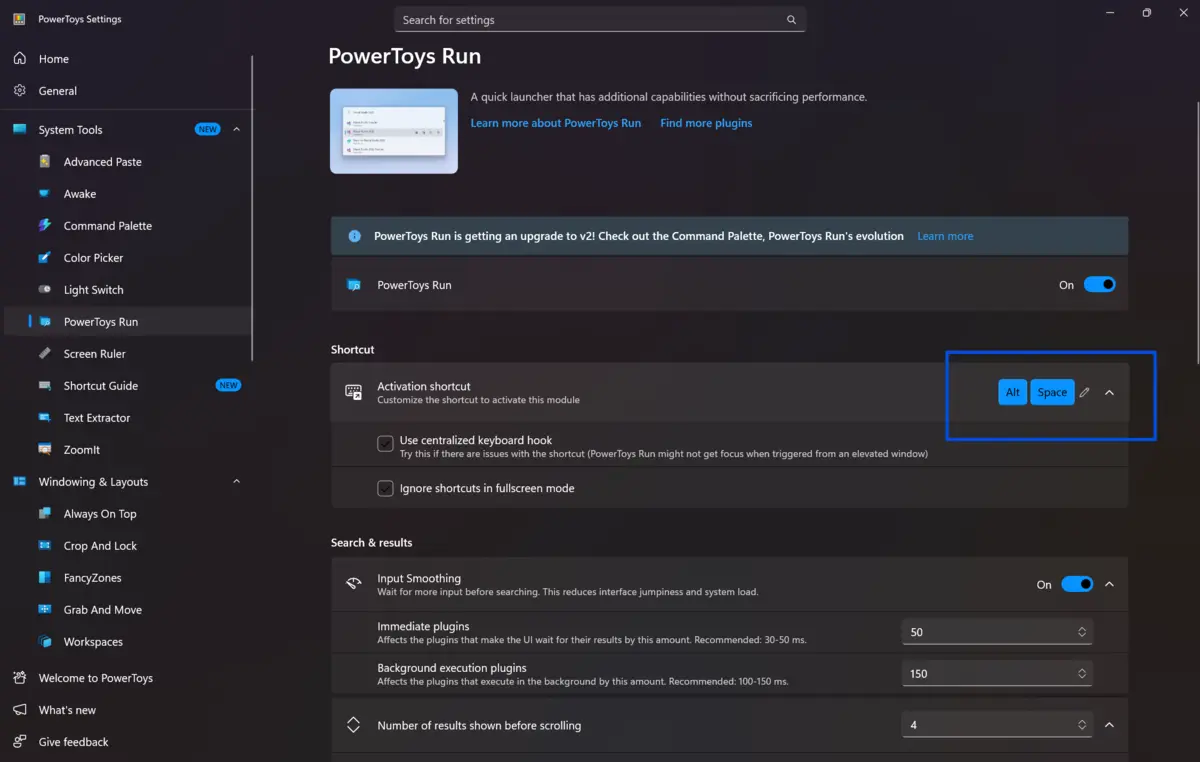
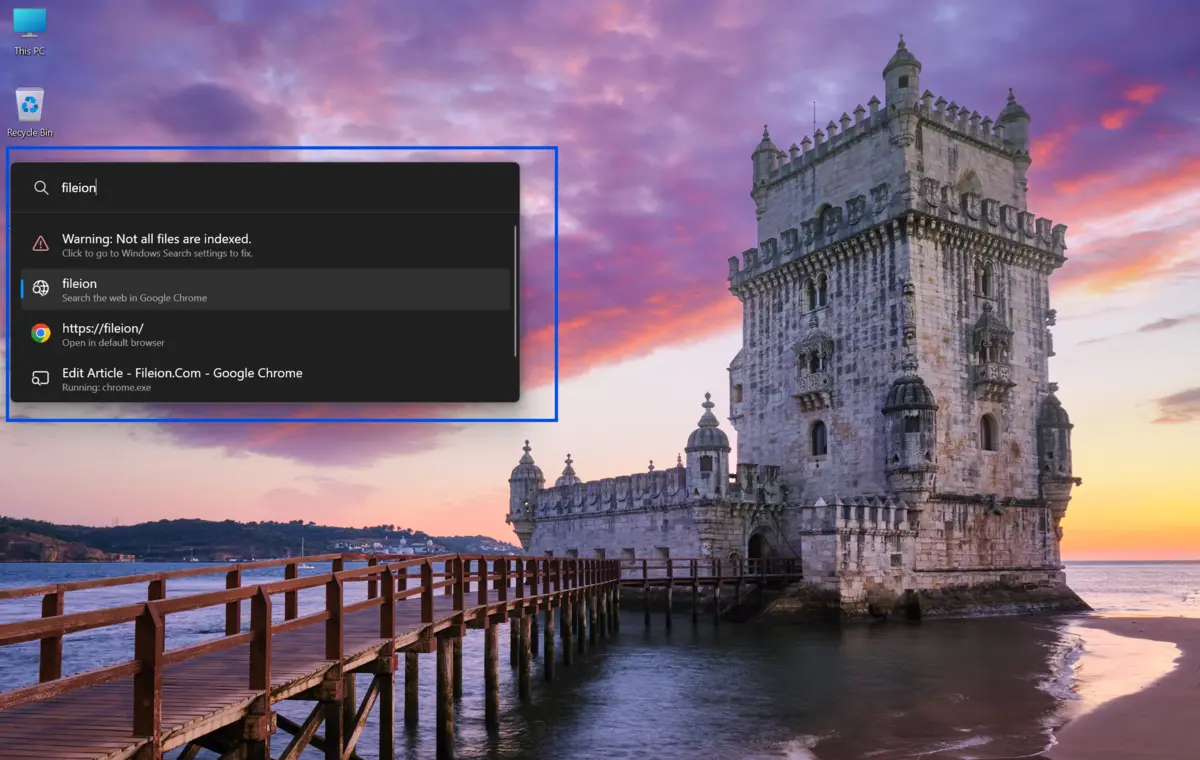
Now enable PowerToys Run. Press Alt + Space to open the launcher. Type an app name, a math expression, or a file name. It returns results instantly. Press Enter to launch.
-
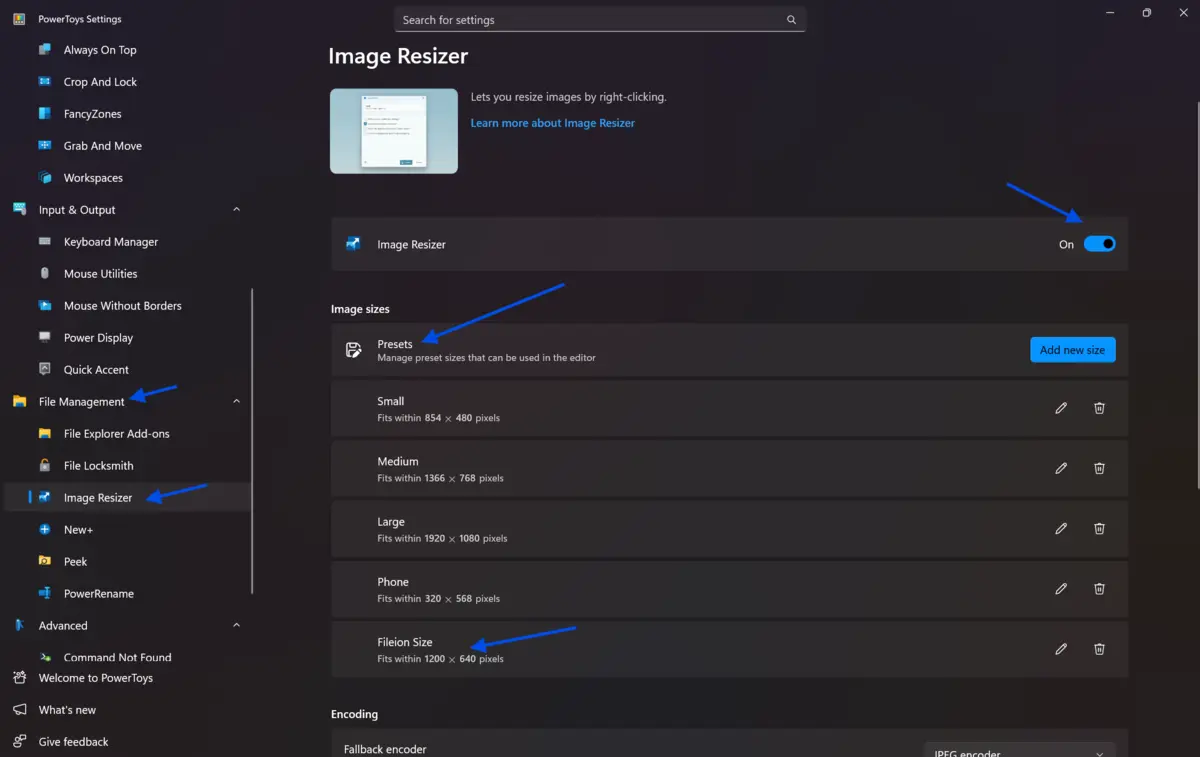
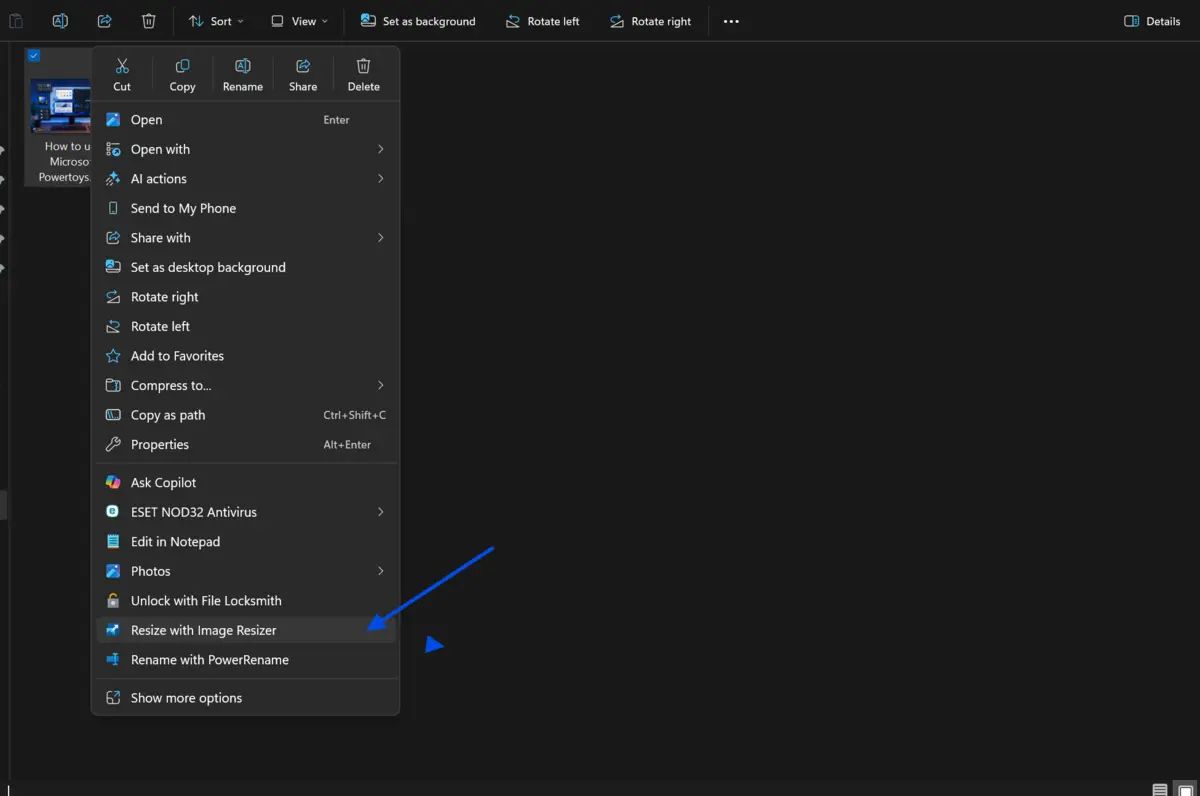
Enable Image Resizer next. Find any image in File Explorer, right-click it, and select "Resize with Image Resizer." Choose a preset size or enter custom dimensions. Click Resize.
-
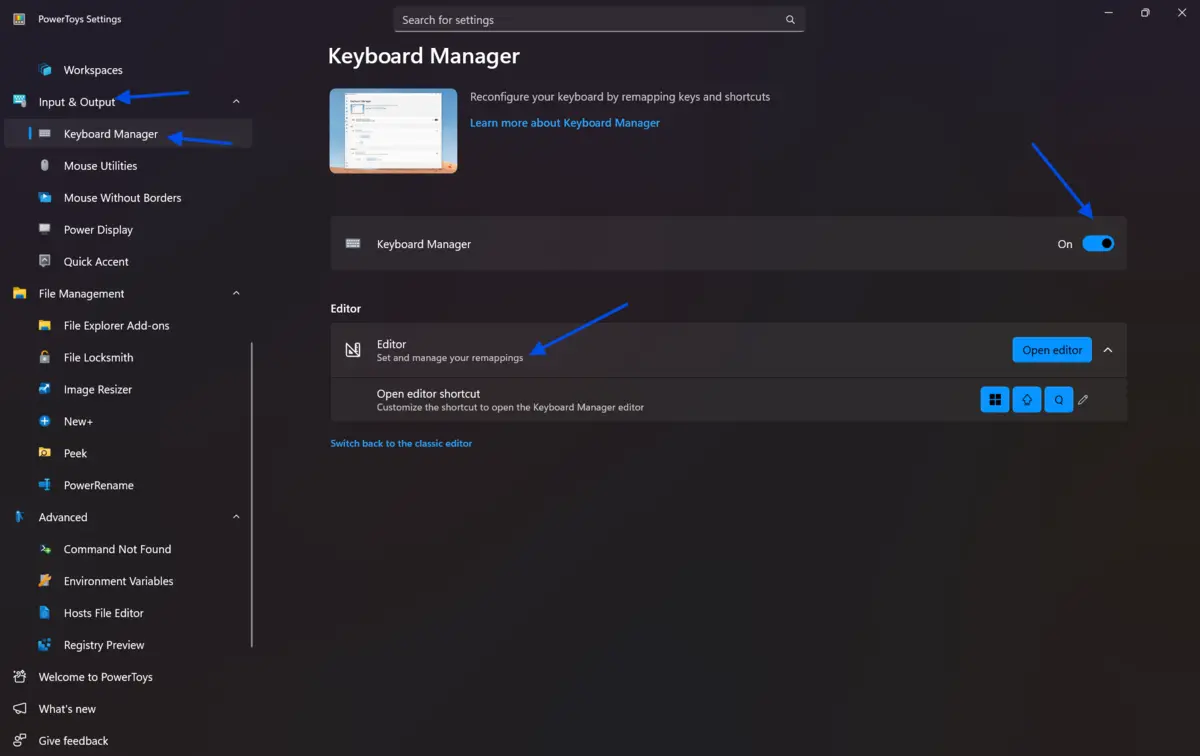
Open Keyboard Manager to remap keys. Click "Remap a key," select the original key, then assign the new key or action. Click OK to save. The remap applies immediately system-wide.
-
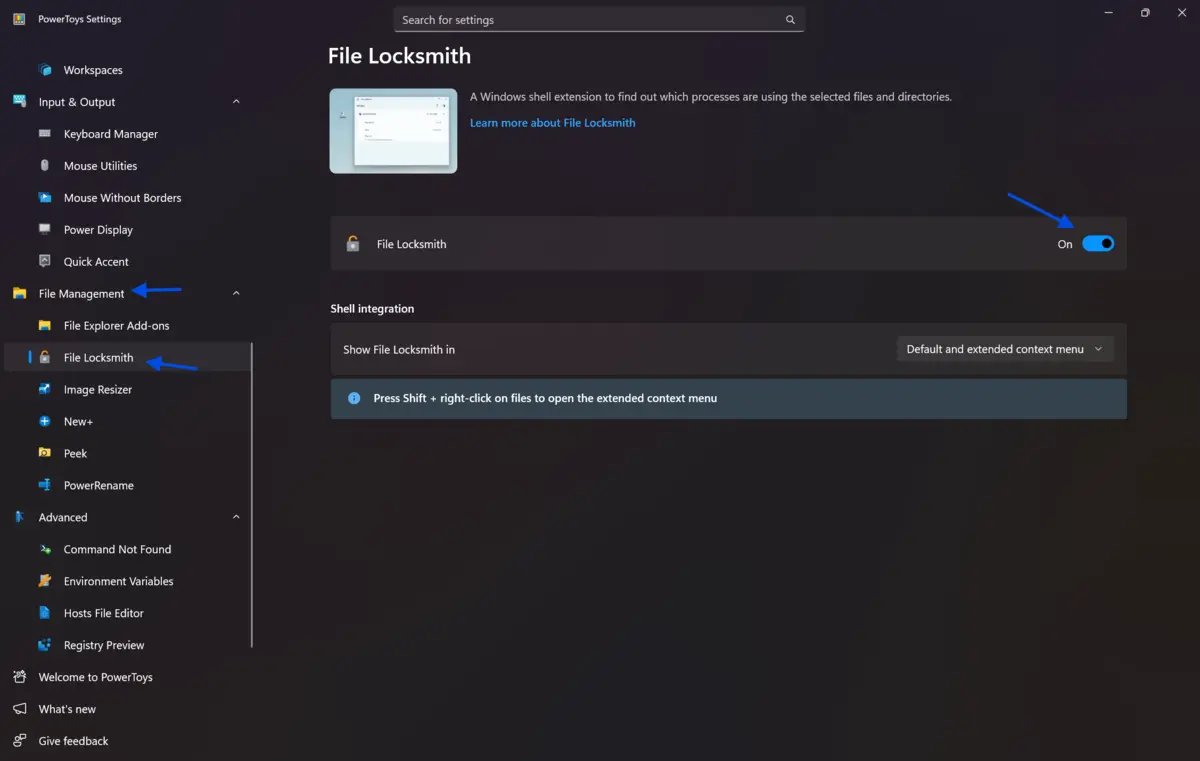
Try File Locksmith when you encounter a locked file. Right-click the file in File Explorer, select "What's using this file?," and the tool lists every process holding it open. You can end those processes directly from the window.
-
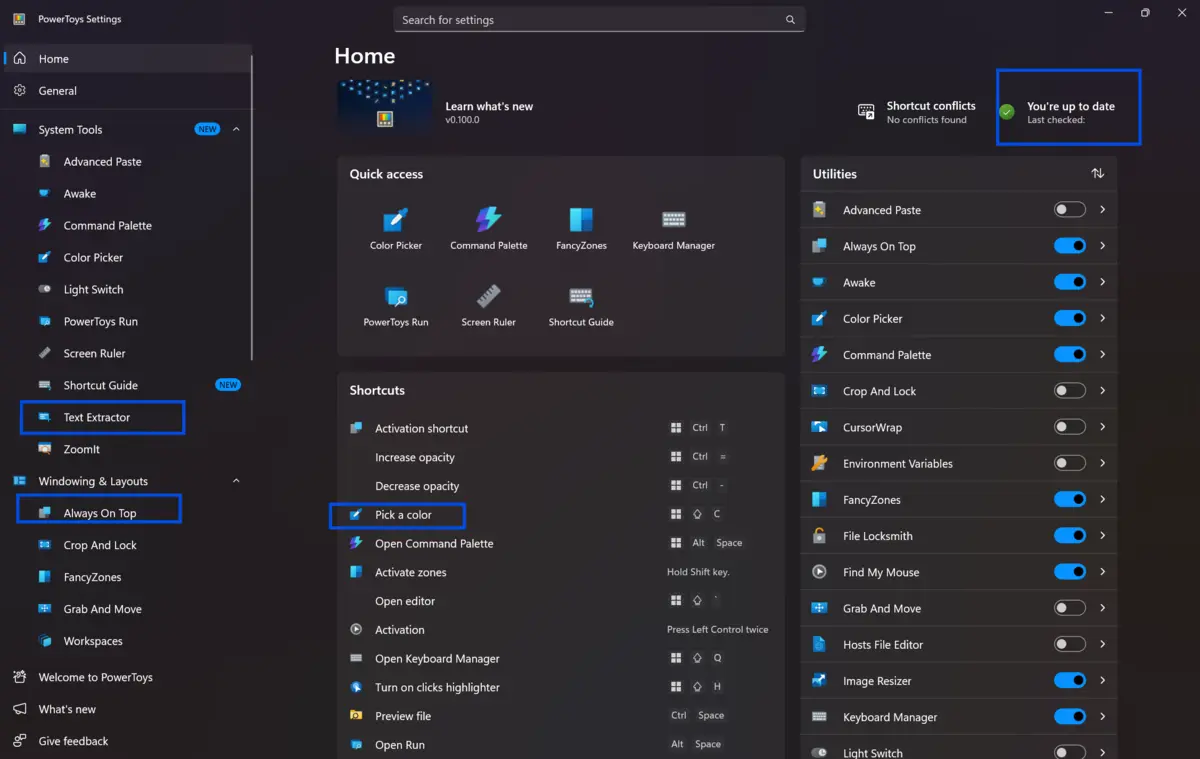
Revisit the Settings dashboard regularly. Microsoft updates PowerToys often. New tools appear in updates. The Always on Top, Color Picker, and Text Extractor utilities are all worth exploring after you master the basics.
Quick Tips
-
Keep PowerToys set to launch at startup. Go to Settings, click General, and enable "Run at startup." This way, your custom layouts and remaps are always active.
-
Use the Color Picker (Win + Shift + C) to get an exact color code from anywhere on your screen. It copies HEX, RGB, or HSL values instantly. Designers and developers use this constantly.
Common Mistakes to Avoid
-
PowerToys uses a small amount of system memory for each active utility. Enable only the tools you actually use, disable the rest to keep things clean and efficient.
-
Sometimes you spend time setting up zones, but forget to click Save in the layout editor. If you close without saving, the layout is lost.
-
Remapping keys like Win or Delete without understanding the consequences can lock you out of basic functions. Test remaps carefully before saving them as permanent.
Pricing & Availability
Microsoft PowerToys is completely free. There is no subscription, no premium tier, and no hidden cost.
It is available for Windows 10 (version 1903 or later) and Windows 11. You can download it from our site.
It is open-source under the MIT license, which means the code is publicly available for review and contribution.
Final Verdict
Microsoft PowerToys is one of the most useful free tools available for Windows users. It does not try to replace your existing workflow. It improves it quietly, with tools that solve real, everyday friction.
Whether you manage dozens of files, work across multiple monitors, or just want faster access to your apps, PowerToys covers it without slowing your system down.
Developers will love keyboard remapping and the color picker. Writers and researchers will benefit from PowerToys Run and Text Extractor. Anyone who works with large file collections will rely on Image Resizer and File Locksmith regularly.
If you are a Windows user and you have not tried PowerToys yet, you are leaving real productivity on the table. Download it today directly from our site and start using your PC the way it was meant to be used.
FAQs
Is Microsoft PowerToys safe to use?
Yes. PowerToys is developed and maintained by Microsoft. It is open-source and available on both GitHub and the official Microsoft Store. There are no known security risks when downloaded from those official sources.
Does PowerToys work on Windows 11?
Yes, PowerToys is fully compatible with Windows 11. It also supports Windows 10 version 2004 and later. Microsoft continues to update it for both operating systems.
Can PowerToys slow down my PC?
PowerToys has a minimal performance footprint. Each utility uses a small amount of memory only when active. You can disable any tools you do not use to reduce resource usage further. On most modern systems, the impact is not noticeable.
How do I update Microsoft PowerToys?
Open the PowerToys Settings dashboard and click on the General tab. If an update is available, a notification appears there. You can also update through the Microsoft Store if you installed it from there.
Can I use PowerToys on Windows 7 or 8?
No. PowerToys requires Windows 10 version 1903 or higher. It is not compatible with Windows 7, Windows 8, or Windows 8.1. Users on those older systems will need to upgrade to Windows 10 or 11 first.
Comments
Let us know about your thoughts
Explore more articles related to Microsoft PowerToys
Here you will find all the latest tips and tricks about Microsoft PowerToys. Also you will get many solution of problems which you may face while using this app.

Fix Big Windows Frustrations
Microsoft PowerToys is a free, open-source Windows utility suite by Microsoft that enhances productivity through smart tools like window layouts, bulk renaming, quick app launch, and system tweaks. It improves everyday workflows without replacing how Windows works.